



Common Mobile Website Errors and Fixes
Website Tips
If your mobile site is slow, hard to tap, or breaks on a phone, you lose leads fast. With 60%+ of web traffic coming from mobile, and many local businesses seeing 70% to 80%, small issues like tiny text, sideways scrolling, broken forms, and heavy images can cost calls, bookings, and sales.
Here’s the short version:
Fix layout first: add the viewport tag, use readable text, and stop horizontal scrolling.
Fix tap issues next: make buttons large enough and remove hover-only menus.
Cut page weight: compress images, use
srcset, lazy-load lower-page images, and trim extra scripts.Test money pages on a phone: forms, bookings, payments, and review modules need a full start-to-finish check.
Use the right tools: Search Console for site issues, DevTools for layout bugs, and Lighthouse or PageSpeed Insights for mobile speed.
A few numbers make the problem clear: 53% of mobile users leave a page that takes more than 3 seconds to load, and each extra second can cut conversions by 4.42%. On top of that, Google ranks sites based on the mobile version first.
So if I had to sum up the article in one line, it would be this: make your site fit the screen, load fast, and let people complete the action they came for.
Problem | What to fix |
|---|---|
Tiny text or zoomed-out pages | Add viewport tag and use at least 16px body text |
Sideways scrolling | Remove fixed-width elements and make media scale |
Hard-to-tap buttons | Use tap targets around 44x44 px to 48x48 px |
Slow pages | Compress images, trim scripts, lazy-load below-the-fold media |
Broken forms or widgets | Test forms, bookings, and payments on iPhone and Android |
That’s the core of it. The rest of the article walks through each fix in a simple order so you can solve the biggest mobile problems first.

Mobile Website Fix Priority: Step-by-Step Checklist
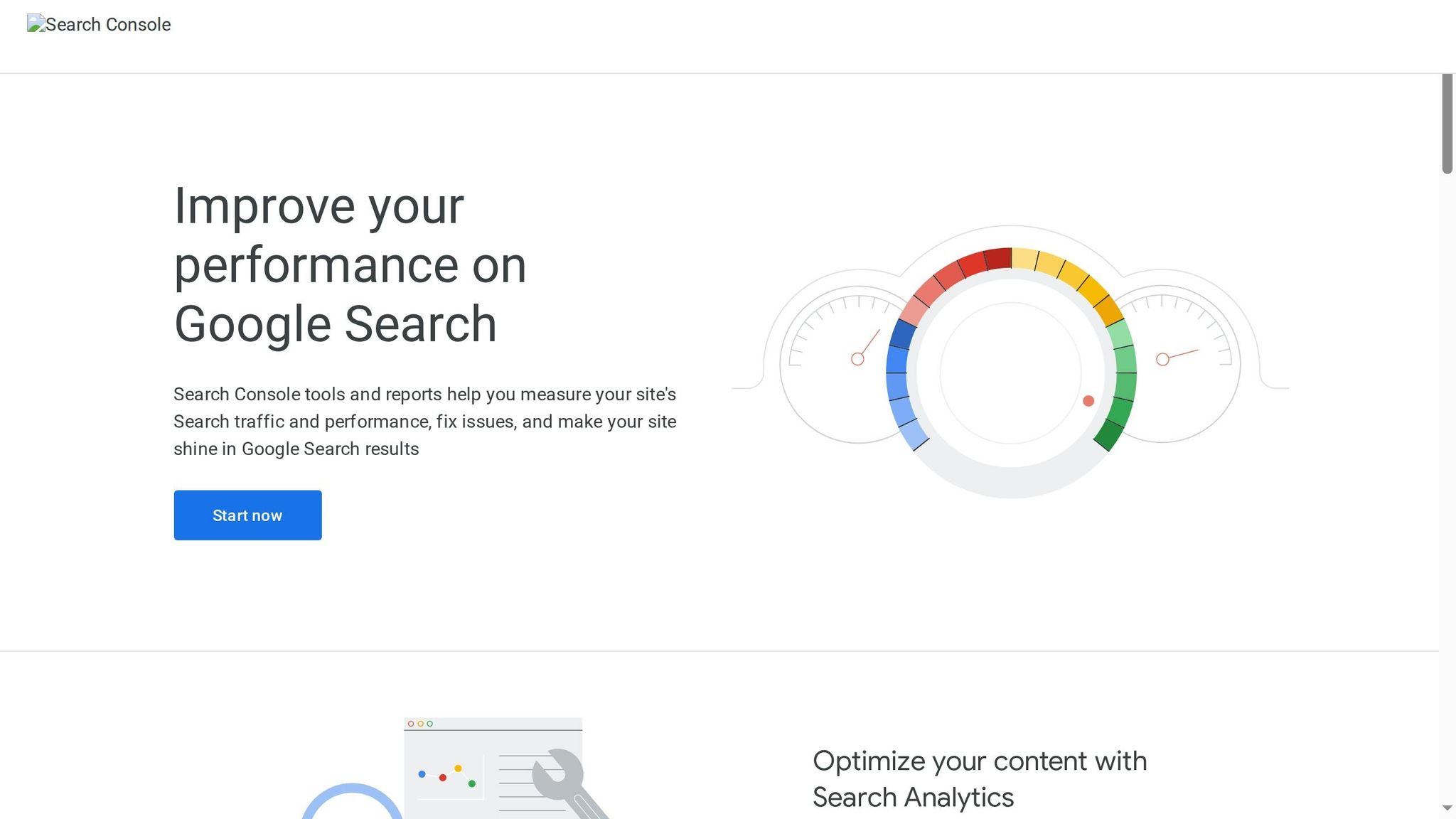
How to Fix Mobile Usability Errors in Google Search Console
Layout problems: pages that break or overflow on mobile
Start with layout issues first. People spot them right away.
Pages that shrink, zoom, or show text too small to read
The most common reason is a missing viewport meta tag. When that tag isn't there, mobile browsers treat the page like a desktop layout and scale the whole thing down to fit the screen. The result? Text gets tiny and hard to read.
The fix is simple. Add this line to your HTML <head>:
Text size matters too. Use body text of at least 16px with a line-height of 1.5–1.6. If text drops below 12px, Google flags it as an error. On iOS, form fields under 16px can trigger automatic zoom, which can make the layout jump around while someone is typing.
Horizontal scrolling and content cut off on the right side
If someone can scroll sideways, one part of the page is wider than the screen. That's usually caused by fixed pixel widths, oversized images, embedded maps, or iframes that weren't set up for mobile.
A good first move is to make media scale down with the screen:
You should also swap fixed widths for fluid sizing, like width: min(100%, 1200px). For tables or other elements that can't shrink much, wrap them in a container with overflow-x: auto. That way, the element scrolls inside its own box instead of pushing the whole page off-screen.
If the problem element is hiding in plain sight, Chrome DevTools can help. Set the viewport to 375px, then add * { outline: 1px solid red; } in the CSS panel. Every element gets a visible border, so the one sticking past the edge usually jumps out fast.
After the page fits the screen, tap targets are often the next thing that goes wrong.
Menus and buttons that are hard to tap on a phone
Tiny tap targets are bad for conversions. Buttons and links should be at least 44x44 pixels on Apple devices or 48x48 pixels on Android. Leave at least 8px of space between clickable elements so people don't hit the wrong thing by accident.
Hover menus are another problem. They don't work on phones. Use tap-to-open navigation and keep only the main items. In most cases, 5–7 key menu links is enough.
For actions that matter most, keep them easy to reach:
Show Call Now and Book Online in the header or footer
Use
tel:links for phone numbersUse
mailto:links for email addresses
Once the page fits the screen and tapping feels easy, speed usually becomes the next issue.
Performance problems: pages that load slowly or fail on mobile
Mobile connections tend to be slower and less stable than Wi-Fi. That means speed issues hit much harder on phones.
Slow mobile load times from heavy images and scripts
One 3–5 MB hero image can push a mobile page past the 3-second mark. A simple fix is to compress images before you upload them. Then use the srcset attribute so smaller screens get smaller image files instead of forcing a phone to download a desktop-sized image and shrink it down. For images below the fold, add loading="lazy" so they load only when someone scrolls to them.
Scripts are another big cause of slow pages. Live chat widgets, analytics scripts, and third-party booking widgets all add page weight. If a script doesn’t help with calls, bookings, payments, or form submissions, cut it. For the scripts you still need, defer non-critical JavaScript so the main content shows up first.
Once you’ve dealt with images and scripts, check the next thing that matters most: can the visitor actually do what they came to do?
Missing content, broken forms, or widgets that do not load
A mobile page can look fine at first glance and still lose leads if the form, booking step, or payment flow breaks.
One easy fix on forms is to use the right HTML input type. Set phone number fields to type="tel" and email fields to type="email". That brings up the right keyboard on iOS and Android, which cuts friction and can reduce drop-offs.
If your site uses Gatsboy's online bookings, Stripe payments, or advanced forms, test each flow on your own phone from start to finish. Make sure the booking confirmation loads, the payment goes through, and the form submission shows a confirmation. Those are the make-or-break moments when a mobile visitor becomes a customer.
Popups and overlays that block the main content
Remove full-screen email signup popups on mobile. If you still use an overlay, the close button should be large, obvious, and easy to tap. Google also penalizes intrusive interstitials in mobile search rankings. So this isn’t just a usability problem. It can hurt SEO too.
If the page loads cleanly but key actions still fail, the next move is to test it on an actual device.
How to fix and test mobile errors without wasting time
A simple mobile debugging workflow for small business websites
If the page still breaks after a layout fix, use this workflow to find the cause fast.
Start with Google Search Console. Open the Mobile Usability report and look at site-wide errors first. Then check high-traffic pages with the worst usability scores. After that, use Chrome DevTools Device Mode to recreate the problem and see the break on screen.
Once you spot the layout or content issue, run Lighthouse or PageSpeed Insights on that specific mobile page to check Core Web Vitals. Fix what you can, then test the updated page on at least one iPhone and one Android device before you publish.
Emulators are great for finding layout breaks. But a real device shows the annoying stuff emulators often miss, like Safari cutting off content behind the address bar or a keyboard pushing a form field off screen. After the fix, click Validate Fix in Search Console to request a recrawl.
Which testing tool to use for each type of problem
Use the tool that fits the problem: layout, speed, or broken function.
Issue Type | Best Tool |
|---|---|
Layout breaks & viewport issues | Chrome DevTools Device Mode |
Site-wide error tracking | Google Search Console |
Speed & Core Web Vitals | Lighthouse / PageSpeed Insights |
iPhone/Safari or Samsung-specific bugs | Real device or BrowserStack |
Conversion & form flow | Real phone testing |
Checking bookings, payments, and reviews modules on mobile
Once the page looks right, test the actions that make money.
Conversion-focused features often fail quietly. A page may look fine and still lose customers if the booking widget scrolls off screen when the keyboard opens, or if a payment button is too small to tap with a thumb.
If your site runs on Gatsboy, test each module on your phone:
Online Bookings: Make sure the calendar opens above the keyboard and the confirmation screen loads.
Stripe Payments: Make sure the payment button is easy to tap and the ZIP field opens a numeric keypad.
Google Reviews: Make sure the module loads without shifting the page.
Conclusion: fix the highest-impact mobile errors first
Mobile errors cost leads and sales. So after you handle layout, speed, and broken functions, put your attention on the pages that bring in revenue.
Start with layout. Then fix tap targets, speed, and core actions. Focus on the home, service, contact, and checkout pages first. Those are the spots where people decide to stick around or bounce, and cleaning up mobile usability issues there can lift mobile conversions.
Once the site works well on mobile, turn to the pages that convert. Small fixes can change conversion rates. A readable font, a button that's the right size, or a form that opens the right keyboard can be the difference between a lead and a lost visitor.
If your site runs on Gatsboy, include Online Bookings, Stripe Payments, and Google Reviews in your final mobile check.
FAQs
How do I know which mobile issue to fix first?
Start with the issues Google treats as hard failures. These have the biggest impact on mobile usability and can hurt rankings fast.
Use Google’s Mobile-Friendly Test or the Search Console Mobile Usability report to spot the biggest problems first, then work through them in order:
viewport not configured
content wider than the screen
text too small
tap targets too close together
After that, test your main user journeys on real phones. Focus on the parts of the site where people are most likely to get stuck, like the menu, forms, and checkout or booking flow.
If speed is the first thing getting in the way, handle that before you fine-tune layout details. A page that loads slowly can block everything else.
Do I need to test on both iPhone and Android?
Yes. Testing on both iPhone and Android helps you catch issues that desktop emulators can miss, like WebKit quirks, hardware interactions, and touch response.
It also gives you a better read on how your site behaves across different operating systems, screen sizes, and browser engines.
Which mobile pages matter most for conversions?
Every mobile page plays a part in conversions. When desktop and mobile don’t match, people hit friction fast. That can lead to confusion, drop-offs, and weaker performance.
Keep your main CTA above the fold so visitors can spot it right away. Your navigation should also work well on every screen and feel easy to tap, not cramped or clunky.
Gatsboy helps small businesses capture and convert visitors on any device with features like online bookings and lead management.
Related Blog Posts
Join our community of 15,000+ business owners
Popular articles
Popular articles about your website and marketing your small business


