


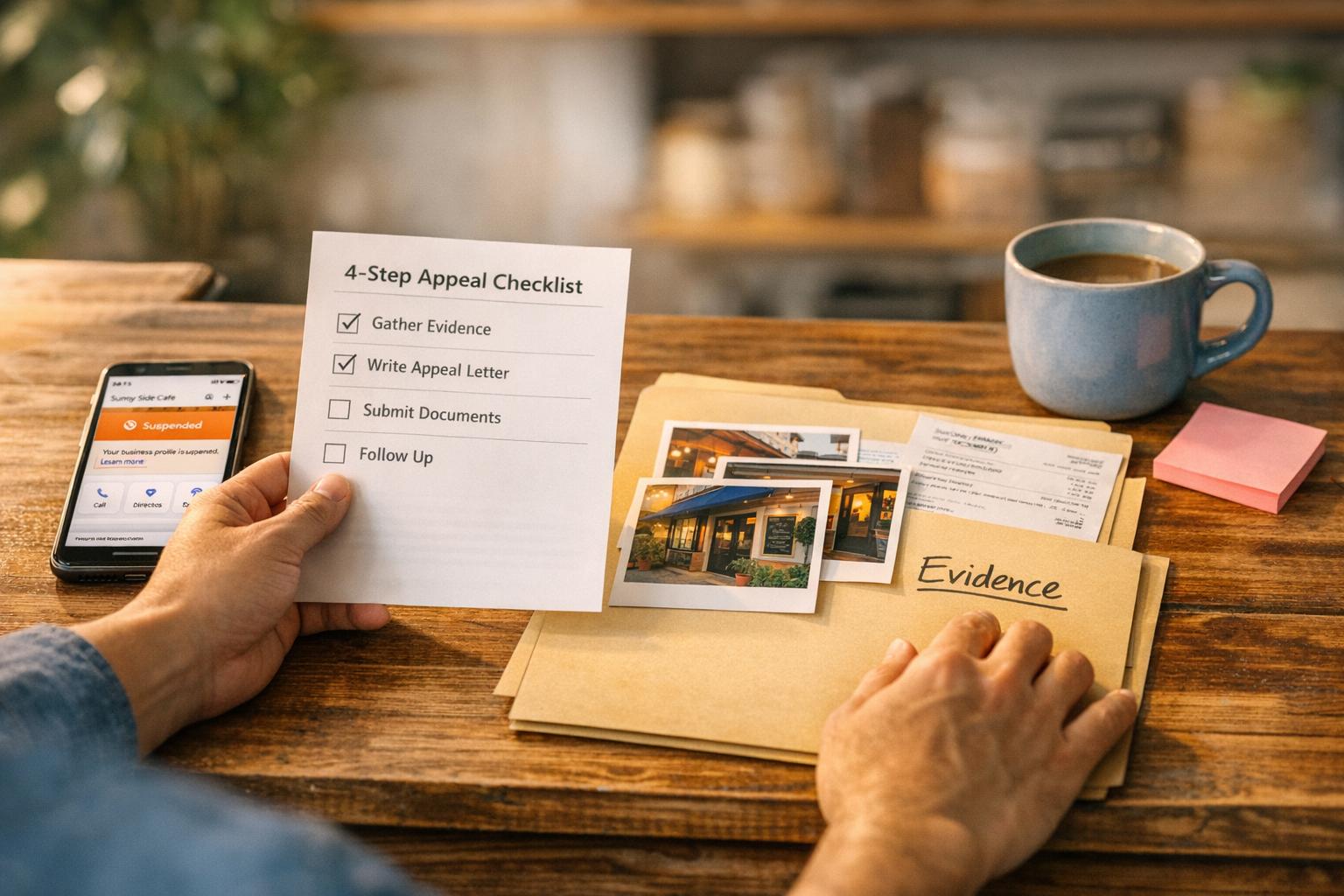
Ultimate Guide To Google Profile Suspension Appeals
Small Business Marketing
When your Google Business Profile gets suspended, your business can disappear from Search and Maps, causing a severe drop in visibility, customer traffic, and revenue. Suspensions can happen for various reasons, including policy violations, incorrect business details, or content issues.
Here’s what you need to know to resolve it:
Types of Suspensions:
Soft Suspension: Your profile stays visible but becomes unverified, and you lose access to manage it.
Hard Suspension: Your profile is completely removed from Search and Maps.
Common Causes:
Keyword stuffing in the business name (e.g., adding extra phrases like "Best Plumber in Denver").
Using a P.O. Box, virtual office, or unstaffed location as your business address.
Inconsistent or incorrect business information (e.g., mismatched phone numbers or addresses).
Violations in photos, reviews, or content policies.
How to Fix It:
Review the suspension notice to identify the issue.
Correct your business details to match official documents (e.g., business license, utility bills).
Remove prohibited keywords, duplicate profiles, or inaccurate information.
Gather supporting documents like photos of your storefront, business registration, and tax certificates.
Appeal Process:
Use Google’s appeals tool to submit your case.
Provide clear evidence and a concise explanation of the corrections made.
Google typically responds within 3-5 business days.
Prevention Tips:
Ensure your business name matches your signage and registration.
Use a valid physical address or set up a Service Area Business properly.
Avoid rapid profile changes to prevent triggering spam filters.
Suspensions affect 35% of profiles annually, so staying compliant with Google’s guidelines is crucial to avoid future issues.
For a detailed step-by-step guide on resolving suspensions and avoiding them, continue reading.
How to Appeal Google Business Profile Suspension
Why Google Suspends Business Profiles
Google suspends business profiles when it detects violations of its guidelines, either through automated scans or manual reviews. Knowing the common triggers can help you avoid problems that could lead to suspension.
Suspensions typically fall into two categories: soft suspensions (your profile remains visible, but you lose management access) and hard suspensions (your profile is removed from Search and Maps entirely). The main causes are policy violations, incorrect business information, and content-related issues.
Breaking Google's Rules
One of the most frequent violations is keyword stuffing. This happens when businesses add extra keywords - like city names or marketing phrases - to their business name field. For instance, listing your business as "Joe's Plumbing - Best Emergency Plumber Denver" instead of just "Joe's Plumbing" is a violation. Sherry Bonelli, a Platinum Product Expert, explains:
"The short-term gains you might get from keyword stuffing your business name are not worth the risk of getting your Google Business Profile suspended."
Address violations are another major issue. Using a P.O. Box, UPS box, virtual office (such as Regus or WeWork), or an unstaffed co-working space will result in suspension. As of 2026, virtual offices have become the top reason for suspensions. Google requires businesses to operate from a physical location with permanent signage and staff available during the listed hours.
Certain business models are also ineligible for profiles. Online-only businesses, lead generation companies, and those using locations they don't own cannot create listings. Additionally, setting up duplicate profiles for the same location is a major red flag that often leads to immediate suspension.
Wrong or Missing Business Information
Inconsistent or incorrect NAP (Name, Address, Phone number) data can trigger Google's automated systems. Even minor discrepancies, like using "Street" on one platform and "St." on another or having different phone numbers listed, can lead to reviews. Home-based businesses that serve customers at their locations (like plumbers or cleaners) must hide their residential address and only display their service area.
Rapid changes to key details - such as your business name, address, phone number, or categories - can also raise suspicion. Google's spam filters flag frequent updates to sensitive fields as potential manipulation. To avoid this, wait at least 60 seconds between changes to these fields.
Problems with Photos and Reviews
Signage issues often lead to suspensions. Your business must have permanent signage at the listed address that matches the name on your profile. Temporary signs, like banners or sandwich boards, do not meet Google's requirements.
Inappropriate content is another common violation. Uploading photos that misrepresent your business, posting prohibited images, or violating Google's content policies can result in suspension. Your photos should accurately reflect what your business looks like in real life.
Review manipulation is a serious offense. This includes generating fake reviews, experiencing a sudden spike in reviews from suspicious accounts, or sharing a phone number across multiple businesses to manipulate rankings. Any of these actions can prompt Google to suspend your profile.
Up next, find out how to review and fix your profile to strengthen your appeal.
Soft Suspensions vs Hard Suspensions
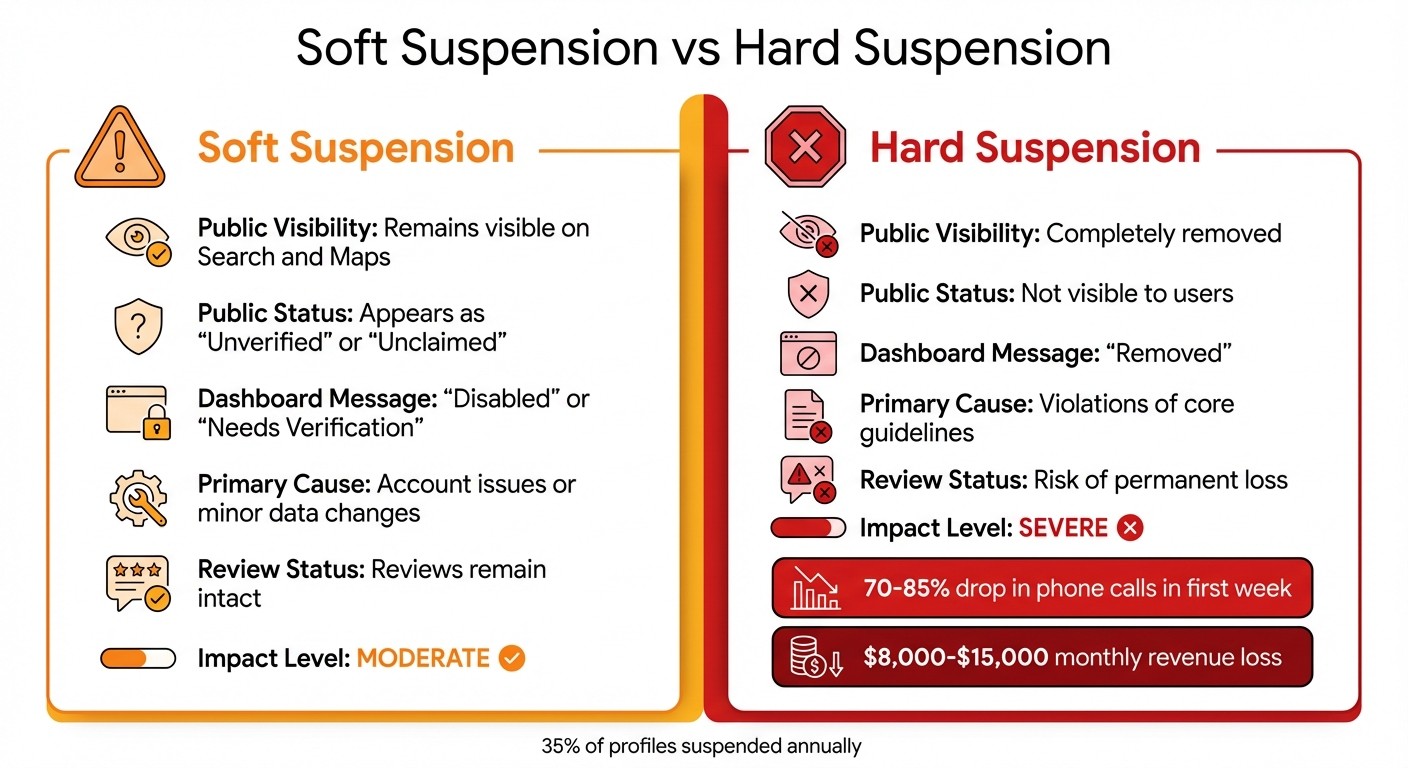
Google Business Profile Suspension Types: Soft vs Hard Suspension Comparison
Knowing what type of suspension you're dealing with is crucial for addressing the issue effectively. Google enforces two levels of penalties, each requiring a different strategy to resolve.
Soft Suspension
A soft suspension keeps your business listing visible on Google Search and Maps but marks it as "unverified" or "unclaimed" to the public. While customers can still see details like your location, hours, and existing reviews, you'll lose access to your dashboard, making it impossible to edit information or respond to reviews.
When accessing your Business Profile, you might encounter messages such as "This listing has been disabled" or "This listing needs verification." These suspensions often stem from account-related problems, like a suspended manager's account, or major updates, such as changing your address. The good news? Your reviews stay intact, and resolving the issue typically involves re-verification or fixing account-level problems.
To confirm if you're dealing with a soft suspension, open your listing in an incognito window. If it appears with a prompt like "Own this business?" or seems unverified, it’s likely a soft suspension.
Next, let’s look at how hard suspensions differ and why they demand immediate action.
Hard Suspension
A hard suspension is a much more severe penalty. In this case, your business profile is completely removed from Google Search and Maps, making it seem like your business no longer exists online. If you check your dashboard, you'll see a message indicating the listing has been removed.
Hard suspensions usually occur when your business violates Google's core guidelines or when its legitimacy is questioned. The impact is immediate and significant: phone calls can drop by 70%-85% in the first week, and businesses often face revenue losses of $8,000–$15,000 per month. Worse yet, if you don't act quickly, you risk permanently losing all customer reviews.
As Sherry Bonelli, a Platinum Product Expert, explains:
"If you run a local business and find that your Google Business Profile has been suspended, it can have a devastating effect... Your phone may stop ringing. Customers may stop coming to your location."
To resolve a hard suspension, you need to file a formal appeal with detailed documentation proving your business's legitimacy.
Feature | Soft Suspension | Hard Suspension |
|---|---|---|
Public Visibility | Remains visible on Search and Maps | Completely removed |
Public Status | Appears as "Unverified" or "Unclaimed" | Not visible to users |
Dashboard Message | "Disabled" or "Needs Verification" | "Removed" |
Primary Cause | Account issues or minor data changes | Violations of core guidelines |
Review Status | Reviews remain intact | Risk of permanent loss |
How to Check and Fix Your Profile Before Appealing
Before submitting an appeal, it’s crucial to identify and resolve the issues that led to your suspension. Google won’t reinstate your profile if the problems remain unresolved. As TomW, a Platinum Product Expert, puts it:
"A suspension indicates an underlying issue that must be corrected before appealing".
Read the Suspension Notice
Start by using the Google Appeals Tool to understand why your profile was suspended. The tool will show your restricted profile, specify the violated policy, and provide a link to Google’s guidelines. You can also check your Business Profile dashboard for notifications.
The type of suspension is usually mentioned in the notice. If the dashboard says "removed", it’s a hard suspension. If it says "disabled" or "needs verification", it’s a soft suspension.
Once you know the violation, make sure all your business details match your official documents.
Check Your Business Details
Ensure your business name, address, and phone number (NAP) match your official documents exactly. Compare your profile information to your business license, tax certificates, or utility bills. Your business name should match your storefront sign - don’t add keywords, phone numbers, or service descriptions.
For example, if your profile name says "Joe’s Plumbing | 24/7 Emergency Plumber", simplify it to "Joe’s Plumbing." Verify that your address is a real, physical location - not a P.O. Box or virtual office. If you operate as a service area business and visit customers, make sure your home address is hidden on your profile.
Double-check your business hours. Only mark your business as open 24/7 if staff are physically present at all times. Incorrect hours can lead to suspension. When making edits, take short breaks between changes to avoid triggering Google’s automated spam filters.
Business Detail | Non-compliant Example | Correct Format |
|---|---|---|
Name | TD Bank, America's Most Convenient Bank | TD Bank |
Name | Regal Pizzeria Open 24 hours | Regal Pizzeria |
Address | P.O. Box 123 or Virtual Office | 123 Main St, Suite 200 |
Category | Swimming Pool (for a hotel) | Hotel |
Once your details are aligned, review the rest of your profile for any additional violations.
Review Your Content for Violations
Check your business description, photos, and categories for compliance with Google’s policies. Descriptions shouldn’t include website links or overly promotional language. Photos must accurately represent your business and match any permanent signage.
Choose categories that describe your business accurately, rather than listing every service you offer. For instance, use "Plumber" instead of specifying each plumbing service. Finally, search for duplicate listings with the same address or phone number and remove them before appealing.
Documents You Need for Your Appeal
Once you've updated your profile details, the next step is gathering the right documents to back your appeal.
Google requires official documentation that verifies your business's legitimacy. It's crucial that every document matches your profile's business name and address exactly. Even small discrepancies - like "LLC" versus "L.L.C." - can result in a denial.
Key Documents to Include
Start with government-issued paperwork, such as:
Business License: Official proof of your authorization to operate.
Business Registration or Incorporation Papers: Documents that establish your business entity.
Tax Certificates: Ensure these show both your business name and address.
For location verification, submit recent utility bills that display your business name and physical address.
Adding Visual Proof
Visual evidence can make your appeal much stronger. Include:
Clear photos of your storefront signage and interior workspace.
If you operate a service area business (without a public storefront), provide photos of branded company vehicles.
You can also include legal documents like lease agreements, property deeds, or business insurance policies. These add an extra layer of credibility.
Formatting and Submitting Your Documents
Save your files as PDF or JPEG formats. When using the appeals tool, click "Add Evidence" and upload your documents within 60 minutes. To avoid confusion, name your files clearly (e.g., "Business_License_2024.pdf").
If you're appealing for multiple locations, consolidate your evidence into a spreadsheet for easier management.
These documents serve as the foundation of your appeal, proving your business's legitimacy in line with Google's requirements. Once everything is ready, you're set to submit your appeal.
How to Submit Your Appeal to Google
Finding the Google Appeals Tool
Start by accessing the official Google Business Profile appeals tool. Log in using the Google account connected to your suspended profile. Once you're in, select the specific Business Profile you want to appeal. The tool will display the reason for the suspension and the exact policy that was violated.
If your entire Google Account is restricted, you’ll need to resolve that issue first. This can be done through the "My accounts" page. Only after addressing the account restriction can you proceed with appealing individual Business Profile suspensions.
Once you've identified the suspended profile, the next step is to prepare and upload your supporting documents.
Uploading Your Documents
When you open the evidence form, you’ll have 60 minutes to complete your upload. If you don’t finish within that time, your evidence won’t be attached to your appeal. To avoid issues, make sure your documents are ready before you start.
Click on "Add Evidence" to upload your files, which must be in PDF or JPEG format. Double-check that all documents match the details in your profile. If you’re appealing for more than 10 profiles, begin with one profile. When prompted, select "Yes" for appeals covering 10+ profiles, and attach a spreadsheet listing the Business Profile IDs along with evidence for all locations.
After uploading your documents, you’ll need to craft a clear and concise explanation for your appeal.
Writing Your Appeal Explanation
Focus on providing a straightforward explanation. Stick to the facts: mention the specific guideline that was violated and explain the steps you’ve taken to fix the issue. Google evaluates appeals strictly on policy compliance, not personal circumstances.
"In the explanation field, be factual and concise. Explain what you corrected to comply with guidelines. Don't complain about lost revenue or how long you've been in business. Google reviews based on facts, not emotional appeals." - TrustReviews
Here’s an example of how to structure your explanation:
"Our profile was suspended for including keywords in the business name. We have corrected the business name to match our official signage and state registration. We’ve been operating at this address since 2020 and have attached our business license, utility bill, and storefront photos as evidence". Be sure to reference the specific documents you’re submitting to establish your business’s credibility and physical location.
Google typically reviews appeals and sends a decision via email within three to five business days. You can track the status of your appeal in the appeals tool, where updates like "Submitted", "Approved", "Not Approved", or "Eligible for appeal" will be displayed.
Checking Your Appeal Status and What to Do If Denied
Once you've submitted your appeal, log into the appeals tool using the account linked to your suspended profile. On the right side of your profile entry, you'll see specific status messages that indicate where your appeal stands: Submitted (appeal received and queued), Approved (profile reinstated), Not Approved (appeal rejected), Can't be appealed (no further appeals allowed), or Eligible for appeal (suspension active but no appeal submitted yet). Google also sends the decision to your primary email, so keep an eye on both the tool and your inbox.
The time it takes to get a response can vary depending on Google's workload. While most initial appeals are reviewed within three to five business days, some users have reported waiting up to six weeks and four days in early 2025. The appeals tool doesn’t include a progress bar or estimated completion time - it only updates the status at key points during the process. This means you'll need to check back regularly to monitor your appeal's progress.
If your appeal status changes to "Not Approved", there’s still one final chance for reinstatement through the additional review form. This step acts as a continuation of the appeal process. Google allows only two attempts for reinstatement: the initial appeal and one additional review. Do not submit another appeal through the standard tool; instead, use the "request additional review" form specifically provided for this purpose.
"This additional review is your last opportunity to prove to Google that you're a legitimate business." – Felix Rose-Collins, Co-founder, Ranktracker
To prepare for the additional review, focus on providing new evidence that wasn’t included in your initial appeal. This might include documents like tax certificates, utility bills, or photos of permanent business signage. You can also add links to your official business registration or BBB profile to further establish credibility. When completing the narrative section, stick to factual explanations of the changes you’ve made to comply with Google’s guidelines - avoid emotional appeals about lost revenue or your business history. Google typically responds to additional review requests within five days.
If this second attempt is denied, your next step is to seek support through the Google Business Profile Help Community.
How to Avoid Future Suspensions
Once you’ve learned how to appeal suspensions, the next step is to focus on preventing them altogether. With around 35% of profiles suspended annually, taking proactive steps can make all the difference. By understanding what triggers suspensions and adopting the right practices, you can keep your profile safe and compliant.
Common Problems and How to Fix Them
Here’s a breakdown of the most frequent violations and how to address them:
Business Name Violations: These make up 42% of policy-related suspensions, with keyword stuffing being the primary culprit. If your business name includes service descriptions, location names, or promotional phrases, remove them immediately. Your profile name must match your official business license and physical signage. Also, pause for at least 60 seconds between major edits to avoid triggering spam filters.
Address Issues: Always use a physical commercial address or opt for a Service Area Business (SAB) setup to hide residential addresses. Home-based businesses serving customers at their location should select the SAB option. Keep documents like a utility bill (electric or water) and photos of branded business vehicles ready for verification purposes.
Common Problem | How to Fix It | Required Documents |
|---|---|---|
Keyword Stuffing | Remove service descriptions/locations from the business name. | Business license, official registration docs. |
Ineligible Address | Replace P.O. Box/virtual office with a physical or SAB address. | Utility bill, lease agreement. |
Duplicate Listings | Identify and delete extra profiles for the same location. | Profile IDs for both listings. |
Incorrect Hours | Update hours to reflect actual staffed times. | None (general legitimacy docs can help). |
Ineligible Business | Ensure the business meets customers in person or qualifies. | Photos of workspace, branded vehicle. |
To avoid issues, make gradual edits to your profile. Rapid changes can trip spam filters, leading to unnecessary suspensions. And never create a new profile to replace a suspended one - Google treats this as a duplicate listing violation, which can result in a permanent ban and the loss of all your reviews.
Using Gatsboy to Stay Compliant

In addition to fixing common problems, automated tools can help you maintain compliance over time. For example, consistency between your website and Google Business Profile is critical. Any discrepancies in your Name, Address, and Phone Number (NAP), website redirects, or security warnings can raise red flags during Google’s algorithm checks.
Gatsboy’s Website + Pro plan (priced at $99/month) includes the Local Tracking add-on, a tool designed to monitor your local rankings and flag potential issues before they result in suspensions. The platform’s business dashboard ensures your NAP details remain consistent across your website and profile, reducing the likelihood of verification requests.
For businesses in high-risk industries, the Local Tracking tool is especially useful. It keeps tabs on your local search performance and competitor activity, helping you spot unusual ranking drops that might signal a pending suspension. Plus, Gatsboy’s secure hosting and SEO features provide a stable online presence that aligns with Google’s requirements.
Conclusion
Having your Google Business Profile suspended can feel overwhelming - customer inquiries might plummet, foot traffic could drop by as much as 90%, and your business might even disappear from Google Maps overnight. However, with the right steps, you can recover and safeguard your online presence.
The first step is to act swiftly and systematically. Determine whether the suspension is hard or soft, inspect your profile for potential violations like keyword stuffing or incorrect addresses, and gather all necessary documentation before filing an appeal. Once you access the evidence form, submit all required documents within 60 minutes. Google generally processes appeals within three business days, so while speed is important, accuracy and thoroughness are even more critical. This approach not only helps with reinstatement but also builds a foundation for avoiding future issues.
After reinstatement, focus on staying compliant to prevent being part of the 35% of profiles suspended annually. Ensure your business name matches your signage and licensing exactly, use a proper physical address or set up a Service Area Business correctly, and avoid making rapid profile edits - space them out by at least 60 seconds to steer clear of spam filters.
Consistency is key, particularly between your website and your Google Business Profile. Tools like Gatsboy's Local Tracking add-on can help monitor local rankings and flag issues before they become major problems. Paired with their business dashboard for keeping your NAP (Name, Address, Phone number) data aligned, you’ll have a solid system that adheres to Google’s guidelines.
Your Google Business Profile is a vital asset. By following this guide step by step - understanding violations, submitting a detailed appeal, and maintaining compliance - you can protect your online visibility, preserve your hard-earned reviews, and ensure customers can always find your business when they need it.
FAQs
Will I lose my reviews if my profile is suspended?
No, you won’t lose your reviews if your profile gets suspended. Reviews are usually preserved and will show up again once your profile is reinstated. Getting your profile back ensures that your reviews remain visible and continue to contribute to your business's reputation.
What should I do if Google denies my appeal?
If your appeal gets denied, take a closer look at the suspension reasons and make sure your profile meets all of Google’s guidelines before trying again. Collect solid proof, such as utility bills that match your business details, and double-check that your profile information matches your website and other online listings. After resolving any violations, submit a new appeal with stronger documentation, ensuring every issue is fully addressed before reapplying.
How can I prove my address if I’m a service-area business?
To confirm your address as a service-area business (SAB), submit utility bills that display both your business name and address. Acceptable documents include electricity, phone, water, or internet bills. Ensure the details match your Google Business Profile. This step helps Google verify your location, even if your business operates without a physical storefront - something typical for SABs.
Related Blog Posts
Join our community of 15,000+ business owners
Popular articles
Popular articles about your website and marketing your small business


