



How to Optimize Form Fields for Conversions
Website Tips
Most forms lose people because they ask for too much, too soon. If I want more submissions, I keep only the fields that change my next reply, match the form to buyer intent, and test each change with data.
Here’s the short version:
Cut extra fields. If a field does not help me reply, route, prioritize, or qualify the lead, I remove it.
Keep early-interest forms short. Contact and service forms often work best with 3 to 5 fields.
Ask for more only on quote forms. For pricing or feasibility, I can ask for things like location, budget range, and timeline.
Use one column and clear labels. Forms with 5 fields or fewer are easier to scan in a single-column layout.
Split long forms into steps. If a form goes past 5 fields, I break it into steps and show progress like “Step 2 of 3.”
Make phone optional when possible. Requiring a phone number can push people away; one stat in the article says 37% abandon when it is required.
Hide fields that do not apply. Conditional logic keeps the form shorter on the screen.
Track what people do. I watch views, starts, completions, and drop-off by field so I know what to fix.
A few numbers stand out:
About 68% of users abandon forms before submitting
Only 38% of visitors who start a contact form finish it
A specific CTA can improve conversions by 10% to 20%
Form type | Best use | Field count |
|---|---|---|
Contact form | General questions | 3–4 |
Service inquiry | Light lead routing | 3–5 |
Quote request | Pricing and scope | 5–7, often multi-step |
The main rule is simple: ask only for what helps with the next step. That is how I keep forms short without hurting lead quality.
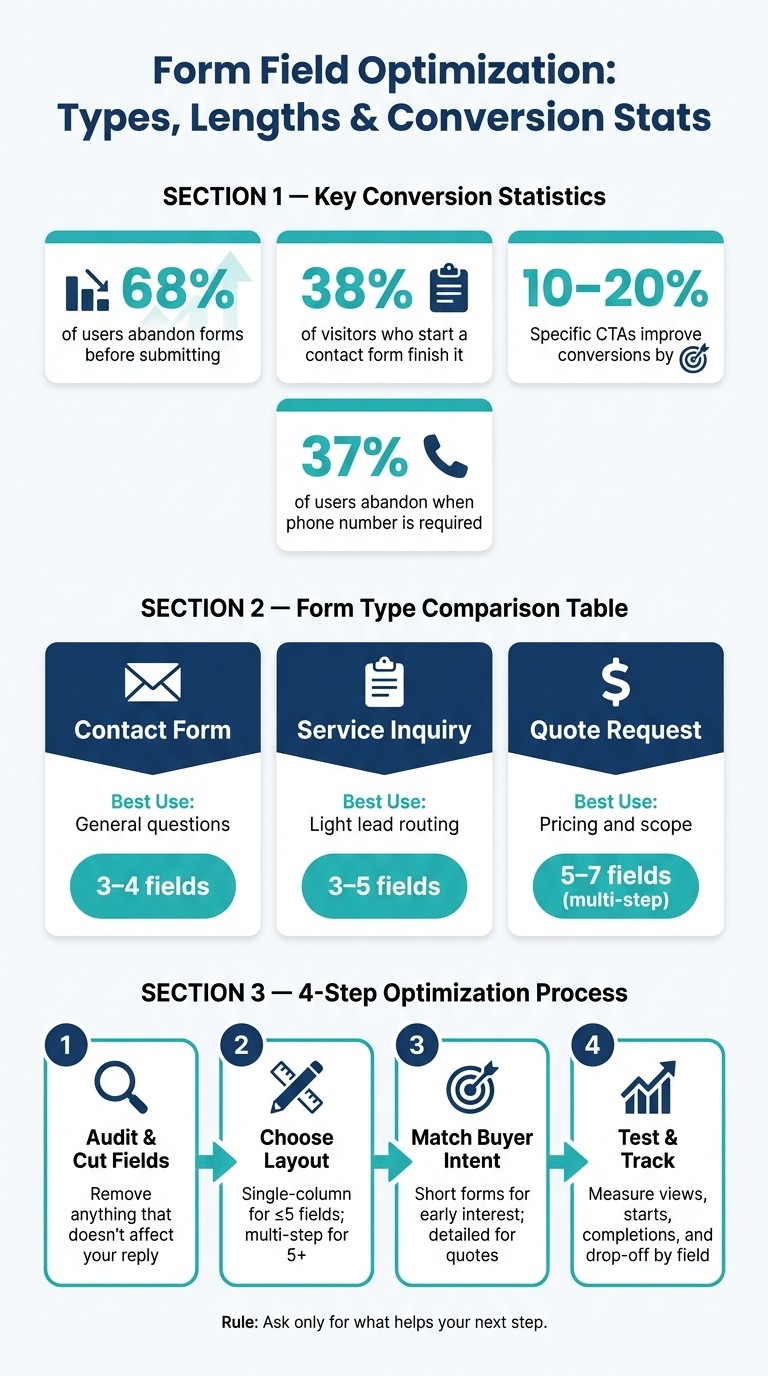
Form Field Optimization: Types, Lengths & Conversion Stats
Multi Step Form UX: Best Practices In Multi Step Form Design To 2x Your Leads
Step 1: Audit Your Current Fields and Cut What You Do Not Need
Audit every field with one simple test: does this answer change how you reply? If not, cut it.
Start by listing every field that shows up on the form. Then trim that list hard. Once it's lean, you can move to the next step: picking the right form length and layout.
Tag Each Field as Required, Optional, or Remove
Go field by field and give each one of three tags: required, optional, or remove.
Use this question to make the call: Do you need this answer before you respond? If the answer is no, save it for a discovery call or follow-up email, not the first form.
Keep only the fields that help you:
contact the lead
route the lead
prioritize the lead
qualify the lead
That filter keeps things simple. If a field doesn't help with one of those jobs, remove it.
A common fix is swapping separate First Name and Last Name fields for one Full Name field.
Trim Fields on High-Traffic Pages
On contact and service pages, shorter usually wins. Only 38% of visitors who start a contact form actually submit it. So every extra field gives people one more reason to bail.
For quote forms, keep only the fields that shape the scope, such as project type, location, budget range, and timeline. For budget and timeline, use dropdowns or radio buttons so people can answer fast.
Form Type | Keep | Defer or Remove |
|---|---|---|
Contact | Full Name, Email, Message | Subject, Department, Phone |
Service Inquiry | Full Name, one contact method, Service Type | Company Name, Address, "How did you hear about us" |
Quote Request | Full Name, one contact method, Project Type, Location, Budget Range, Timeline, Context | Exact budget, detailed scope, insurance info |
Once you've done the audit, the fields left on the page will make the next call easier: should the form stay single-step, or should it move to multiple steps?
Avoid Sensitive or Premature Questions
Early on, ask only for what changes your next reply. Things like mailing address, property age, square footage, and insurance carrier can wait for follow-up.
Phone number is a classic trouble spot. When phone number is required, 37% of users abandon the form entirely. Making it optional is a small tweak, but it cuts friction. If you need that number, ask for it after the form is submitted. Same idea with scheduling: handle it after submission, not inside the form.
With the field list trimmed, Step 2 is deciding how to present it.
Step 2: Choose the Right Form Length and Layout
Form length and layout shape how hard a form feels. And that feeling matters a lot. In many cases, perceived length matters more than the raw number of fields.
Keep Single-Step Forms Short and Easy to Scan
For early-interest forms, keep things short. Save the deeper screening questions for quote requests. If your form has five fields or fewer, keep it on one page and use a single-column layout so people can move straight down the page on desktop and mobile.
Labels should sit above each field, not inside it. And your CTA should be specific, like "Get My Free Quote" or "Check Availability." Why? Placeholder text vanishes as soon as someone starts typing, which makes people remember what the field was asking for. A specific CTA also sets clear expectations and can improve conversions by 10% to 20%.
Once a form pushes past five fields, don’t just make the page longer. Break it up.
Split Longer Quote or Booking Forms Into Steps
If a form has more than five fields, splitting it into steps can cut mental strain and help protect completion rates. The best move is to group fields in a way that feels natural:
Contact info first
Project details next
Follow-up details after that
Each step should feel like part of a normal conversation, not paperwork.
Always show a progress marker like "Step 2 of 3." It gives people a sense of where they are and how much is left. That matters because once someone starts a task, they often feel pulled to finish it. It also helps to put easy questions first, such as name, email, or service type. That move is smart for two reasons: it gets the person moving, and it lets you collect lead info early in case they leave before the last step.
After you cut mental strain, the next move is simple: hide anything the person doesn’t need to see.
Use Conditional Logic to Hide Fields That Do Not Apply
Use conditional logic in quote and booking forms when different services call for different questions. For example, only show "Number of Employees" if the user picks "Enterprise." That way, the form stays short without losing the ability to handle different cases.
Gatsboy's advanced forms and online bookings can use conditional logic to show only the fields that apply. That keeps the form matched to buyer intent, which is the next step.
Step 3: Match Form Fields to Where the Buyer Is in the Process
Conditional logic helps keep forms lean. But that alone isn't enough. The fields people see should also line up with where they are in the buying process.
That’s the rule to use when deciding what belongs on service pages, contact pages, and quote forms.
Use Short Forms for Early Interest on Service Pages
On service pages, keep things simple. Stick to three or four fields: name, email, service of interest, and a short message.
A basic service-interest dropdown can help send the lead to the right person without slowing anyone down. Leave phone number, budget, and timeline for later. Asking for a phone number too soon can hurt conversions. It can cut conversion rates by up to 5% and lead 37% of users to abandon the form.
Route Contact Form Inquiries Without Adding Extra Work
For contact pages, one category dropdown is often enough. Options like "General Question", "Support," or "New Project" let you route the inquiry without making the form longer.
That keeps the form at three to four fields while still giving your team enough context to reply fast. You get the signal you need without turning the form into a mini application.
Ask Quote Questions That Directly Affect Price or Feasibility
Quote forms are different. These visitors usually have stronger intent, so you can ask for more detail.
Focus on the questions that change price or feasibility: ZIP code, timeline, budget range with three to five preset options plus a "Not sure yet" choice, and project details. For scope, one clear Project Description field is usually enough. It’s easier for people to fill out and easier for your team to review than several open-text boxes.
Once the form lines up with intent, the next step is to check whether the shorter version still brings in qualified leads.
Step 4: Test Changes and Track Results Over Time
Once your fields line up with buyer intent, the next job is simple: check whether the change led to more completions. Numbers help you spot which field, step, or label changed behavior. This is how you verify that shorter forms, layout updates, and better intent matching led to more completions.
Measure Form Views, Starts, Completions, and Drop-Off
Start with the big picture, then narrow in on the exact field where people stop. Track form views, starts, completions, and field drop-off. Low starts often mean the form promise isn't strong enough. High drop-off usually points to one field, one label, or one layout problem.
Once a form has more than three fields, field-level drop-off gives you the clearest signal. If 40% of users leave at "budget range", that field likely needs a clearer label or should become optional. When one field is driving the exits, remove it, make it optional, or push it to a follow-up step. Track mobile and desktop results separately too.
Test One Variable at a Time
A common testing mistake is changing too much at once. If you shorten the form, rewrite the button label, and switch to a multi-step layout in the same week, you won't know what caused the lift.
Pick one change and test that. Go for bigger moves, not tiny cosmetic edits. Good places to start include:
Reducing field count
Making phone number optional instead of required
Switching a single-step form to a two-step layout
For low-traffic small business sites, sequential testing often works better: run one version for about 30 days, then switch. If you have enough traffic, aim for at least two weeks of data or enough volume to reach statistical significance - typically 200+ conversions per variation.
Don't just watch lead volume. Watch lead quality too. If quality drops after a change, the form may now be too short or missing qualification filters.
Use Website Tools to Support Ongoing Optimization
Set up basic events in GA4 to track form_start and form_complete actions so you can calculate abandonment the right way. Then get closer to the user side of things. Review 10 to 20 session recordings in Microsoft Clarity to see where people pause, delete answers, or quit the form altogether.
If you're a small business using Gatsboy, track form updates in the business dashboard next to online bookings and Stripe payments. That way, you're measuring booked work, not just form submissions. Then keep the fields that lead to completed, qualified leads.
Conclusion: Keep Only the Fields That Help the Next Step
Every field asks for a bit more effort. Ask for too much, and people bail. Ask for too little, and the form stops being useful. The sweet spot is a short form that still gives you enough to take the next step, whether that's replying, routing the lead, booking a call, or putting together an accurate quote.
That same logic works across every form type in this guide. The formula is simple: define the job of the form, cut any field that doesn't support that job, match the form length to buyer intent, and test one change at a time.
Use the same rule for contact forms, service pages, and quote requests: keep only the fields that affect your next response. If a field doesn't help you reply faster or qualify the lead better, cut it. Fewer unnecessary fields can increase completions fast. Start with your highest-traffic form, remove anything extra, and track completions for the next 30 days. Then keep the version that brings in the most qualified completions.
FAQs
How do I know which fields to cut?
Start by asking what business decision each field supports. If a field doesn’t serve a clear, needed purpose, cut it.
Audit every field and sort it into one of three buckets:
Essential
Nice-to-have
Vestigial
Remove the last two first.
Pay close attention to fields that add the most friction, like phone numbers, street addresses, and repeat questions that ask for the same thing twice. Those are often the first places where forms lose people.
After that, track what happens when the form gets shorter. The goal isn’t just fewer fields. It’s making sure lead quality still holds up.
When should I use a multi-step form?
Use a multi-step form when you need five or more fields. Once a form starts getting longer, breaking it into steps makes it feel less like a wall of work.
For shorter forms with three or fewer fields, a single-step layout usually works better. Adding extra steps to a short form can slow people down and add friction for no good reason.
Multi-step forms also make sense when you need more complex information, conditional logic, or a smoother mobile experience. The sweet spot is usually two to four steps.
Add a clear progress indicator so people know where they are and what’s left. And try not to go past three or four steps, or the form can start to feel like a chore.
How can I measure form drop-off?
Don’t stop at total submissions. Use form analytics tools to see which specific fields make people quit.
Start with the fields that have the highest drop-off rate. Then look at hesitation time and re-fill rates to find fields that feel confusing, too personal, or easy to get wrong. After that, filter by device so you can spot UX issues that show up on mobile but not on desktop.
Related Blog Posts
Únete a nuestra comunidad de 15,000+ propietarios de negocios
Artículos populares
Artículos populares sobre su sitio web y la comercialización de su pequeña empresa


